
Google Page Speed Lighthouse Score
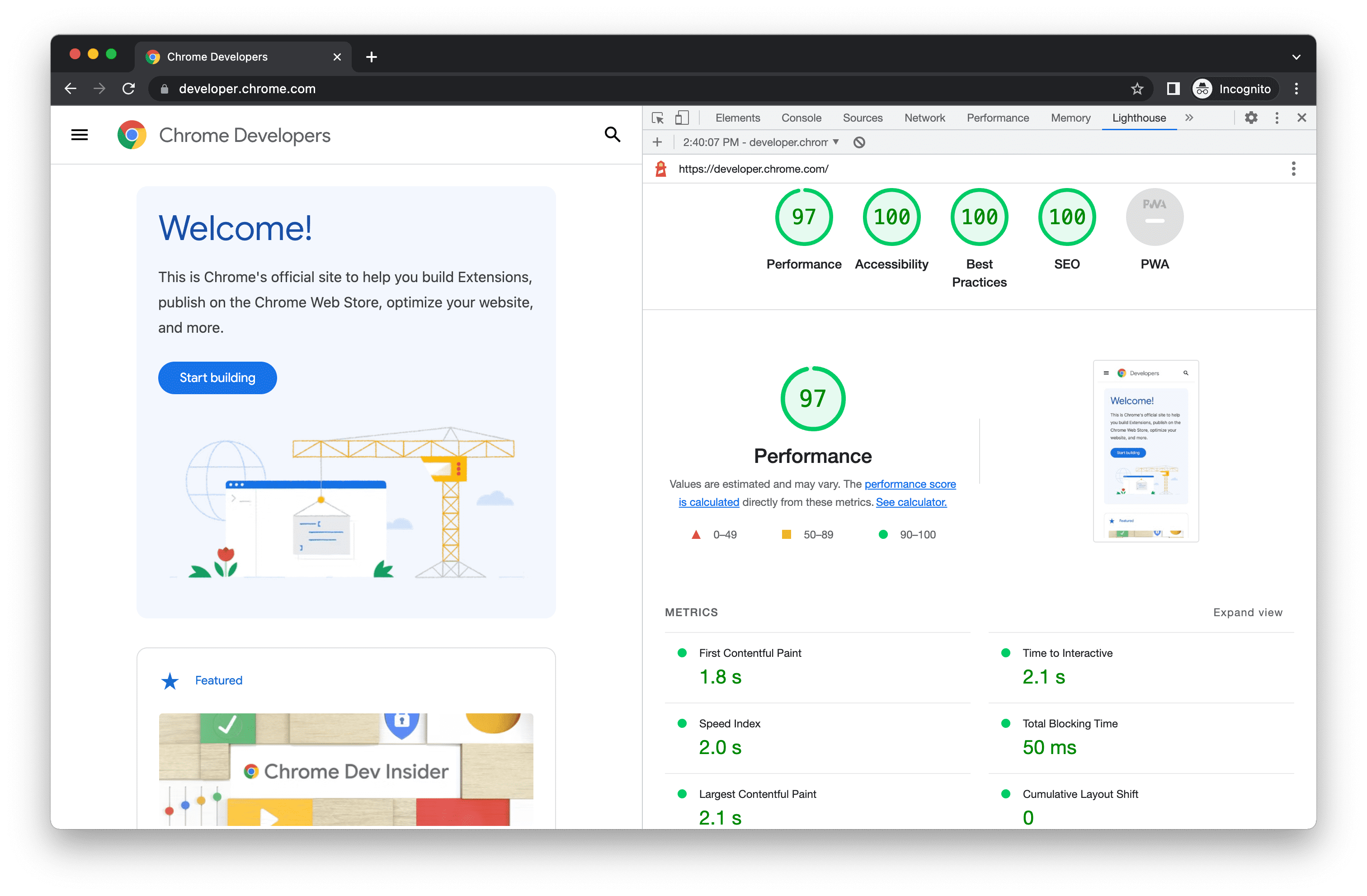
Google Lighthouse is Google's open-source website auditing tool that evaluates the quality of webpages across multiple categories, including Performance, Accessibility, Best Practices, and SEO. It helps developers, marketers, and website owners identify issues that affect user experience and provides actionable recommendations for improvement.
- Lighthouse audits webpages in four key categories: Performance, Accessibility, Best Practices, and SEO.
- Each category receives a score between 0 and 100, making it easy to identify strengths and areas that need improvement.
- The audit includes detailed diagnostics, opportunities, and recommendations to help optimize your website.
- Google Lighthouse is built into Chrome DevTools and also powers the performance analysis used by Google PageSpeed Insights.
- This tool lets you bulk test Lighthouse scores across multiple URLs, helping you quickly identify pages that require optimization.
What is Google Lighthouse?
Google Lighthouse is an open-source website auditing tool developed by Google that helps evaluate the quality, performance, and overall health of web pages. It runs a series of automated tests against a webpage and generates a detailed report containing scores, diagnostics, and practical recommendations for improvement.
Unlike tools that focus solely on website speed, Lighthouse performs a comprehensive audit across four key categories: Performance, Accessibility, Best Practices, and SEO. Together, these categories provide a holistic view of how well a webpage is built and how effectively it serves both users and search engines.
Google Lighthouse is built directly into Google Chrome DevTools, allowing developers to run audits without installing additional software. It also powers the performance analysis behind Google PageSpeed Insights, making it one of the most widely used website auditing tools available today.
Each Lighthouse audit produces a score between 0 and 100 for each category, along with detailed explanations of detected issues and prioritized recommendations for fixing them. This enables developers, marketers, SEO professionals, and website owners to continuously improve their websites using objective, measurable data.
How Google Lighthouse Works
Google Lighthouse works by automatically loading a webpage in a controlled browser environment and running a series of automated audits against it. During the audit, Lighthouse simulates how a real user experiences the page and measures various aspects of its quality, performance, and usability.
The audit begins by fetching the webpage and rendering it inside a Chromium browser. Lighthouse then analyzes hundreds of checks covering page loading speed, accessibility, security, coding best practices, and search engine optimization. Based on these results, it generates individual scores for each audit category along with detailed recommendations for improvement.
Rather than simply reporting a score, Lighthouse identifies the underlying issues affecting your website. For example, it can detect oversized images, render-blocking resources, missing image alt attributes, poor color contrast, missing meta tags, inefficient JavaScript execution, and many other optimization opportunities.
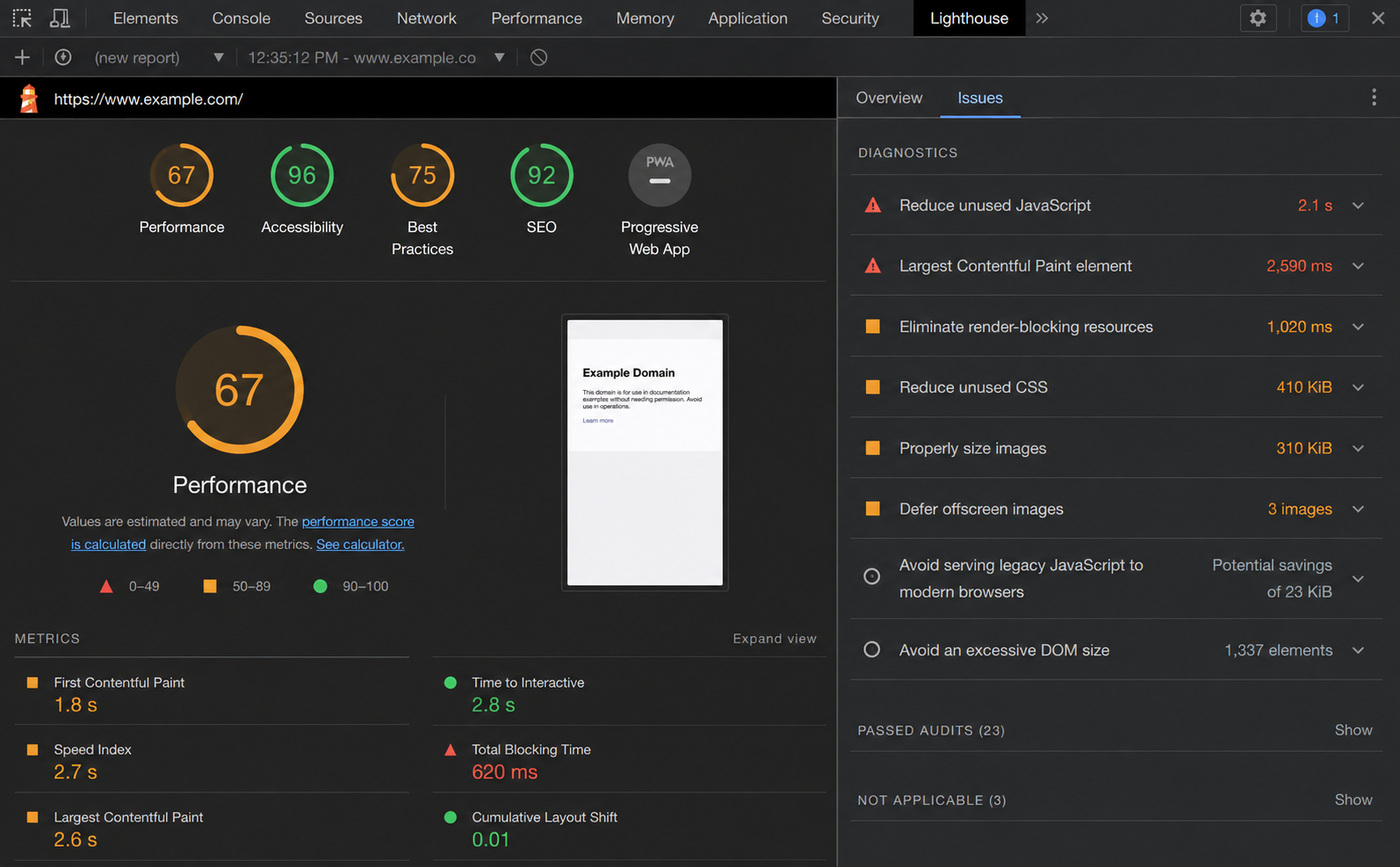
After completing the audit, Lighthouse produces a comprehensive report containing category scores, diagnostics, passed audits, and actionable recommendations. This helps developers, designers, SEO professionals, and website owners prioritize fixes that will have the greatest impact on website quality and user experience.
How to Run a Lighthouse Audit in Google Chrome
Here is how you can run a Lighthouse audit report in Google Chrome
Google Lighthouse is built directly into Google Chrome, allowing you to analyze any webpage without installing additional software. In just a few clicks, you can generate a detailed report covering Performance, Accessibility, Best Practices, and SEO.
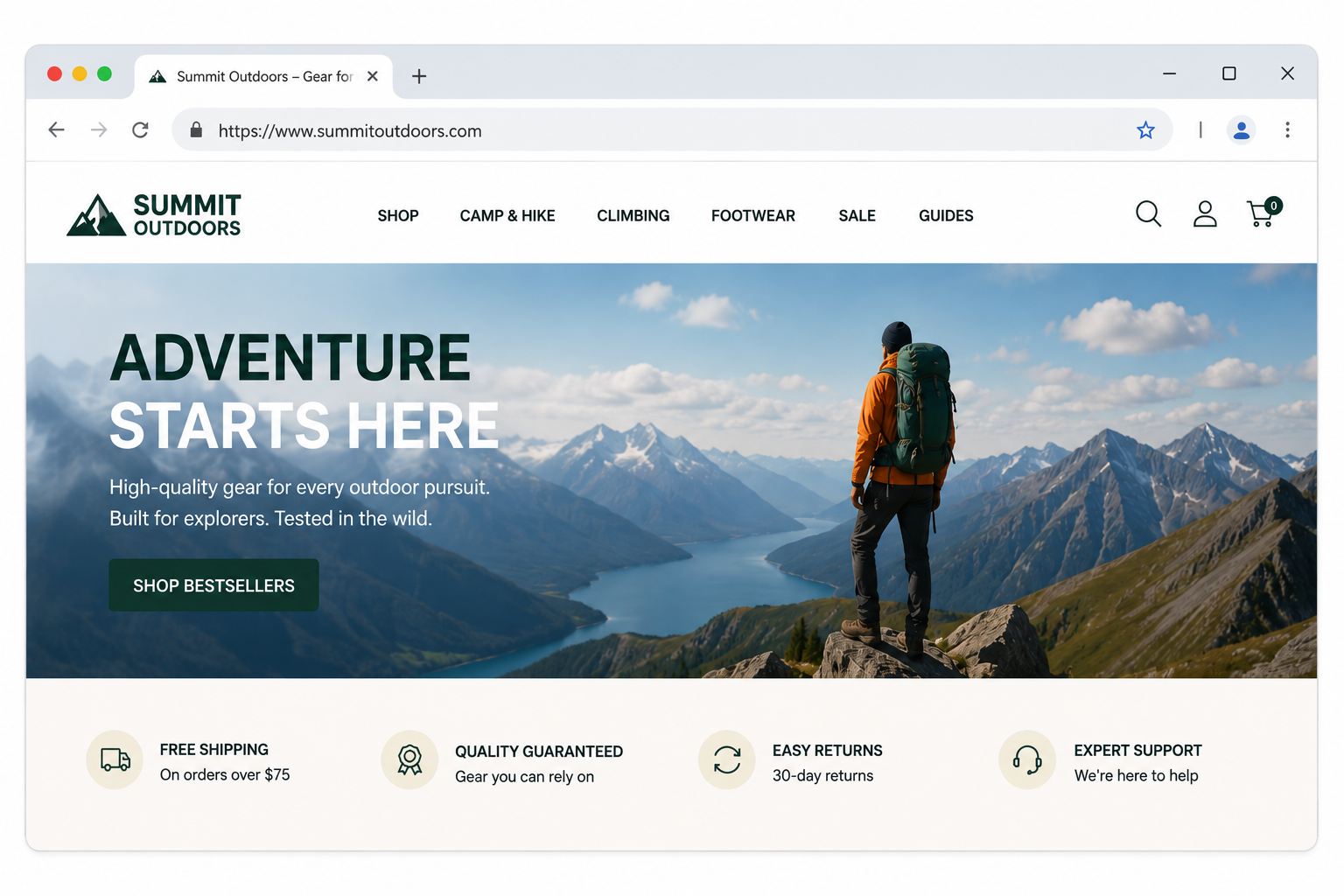
Step 1: Open the webpage you want to audit
Launch Google Chrome and navigate to the webpage you would like to analyze. Wait for the page to finish loading before starting the audit.
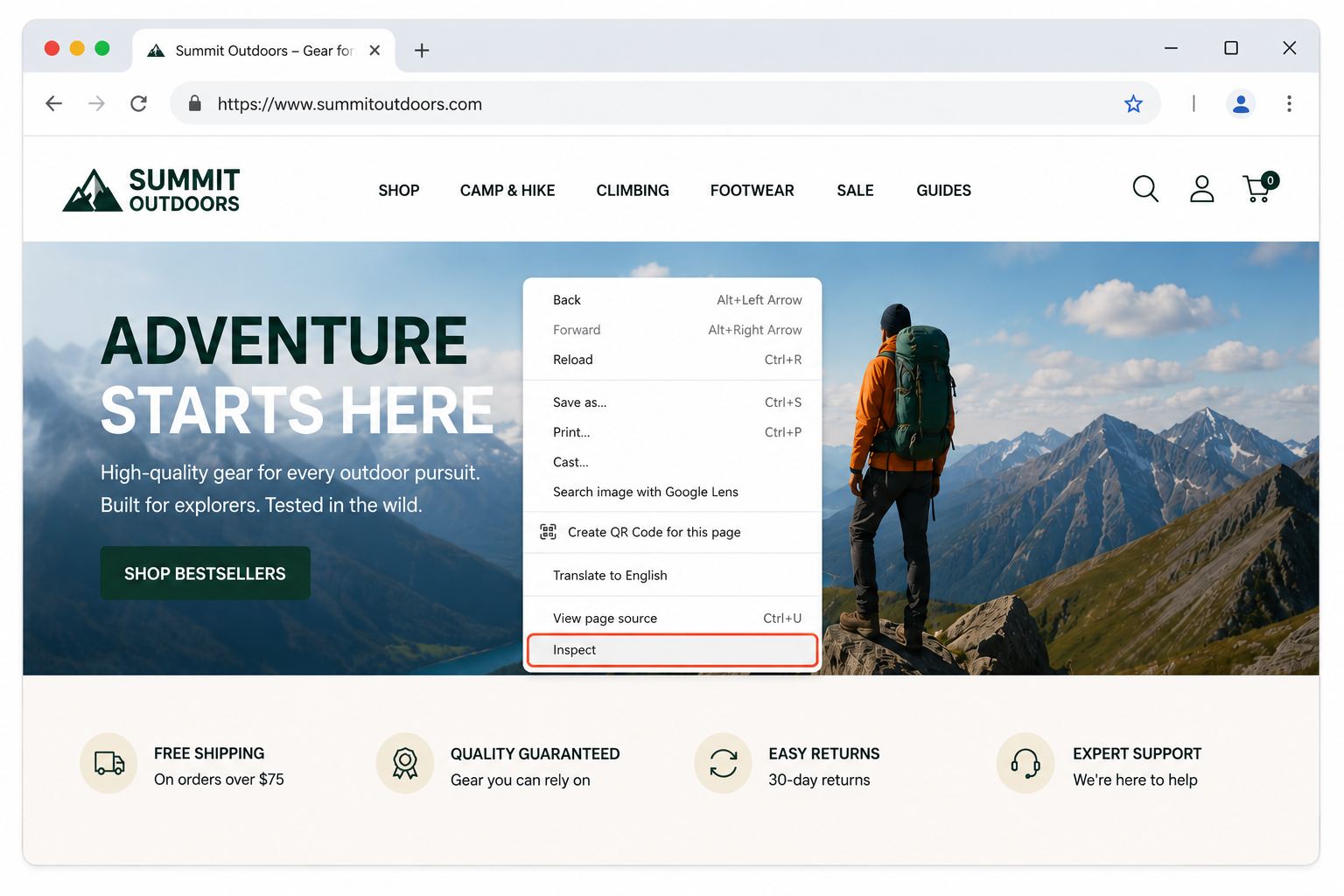
Step 2: Open Chrome DevTools
Right-click anywhere on the webpage and select Inspect, or press Ctrl + Shift + I (Windows/Linux) or Cmd + Option + I (Mac). Chrome DevTools will open.
Step 3: Open the Lighthouse panel
Inside Chrome DevTools, click the Lighthouse tab. If it isn't immediately visible, click the >> menu to reveal additional tabs.
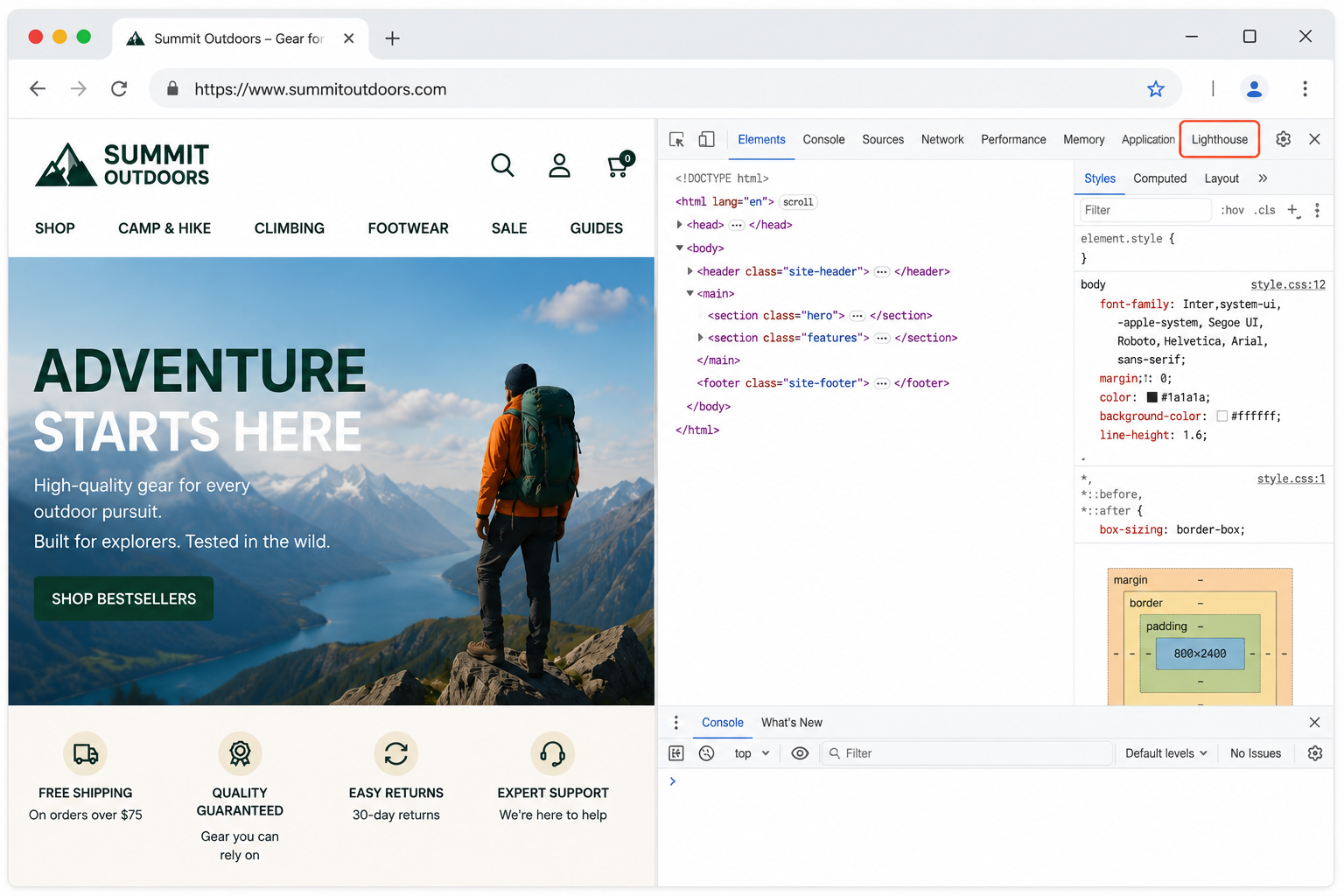
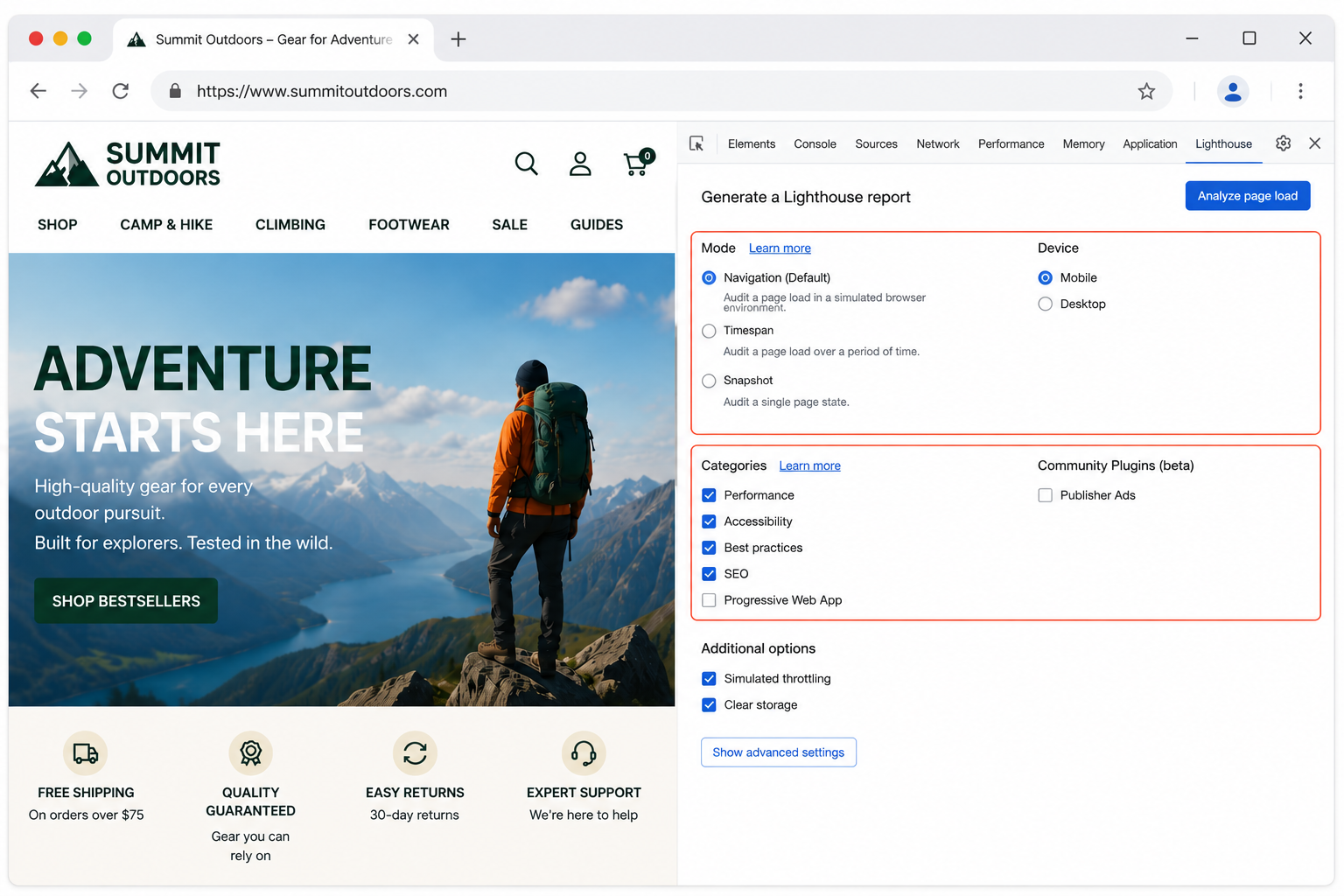
Step 4: Configure your audit
Choose whether you want to audit the Mobile or Desktop version of the page. You can also select which Lighthouse categories to test, including Performance, Accessibility, Best Practices, and SEO.
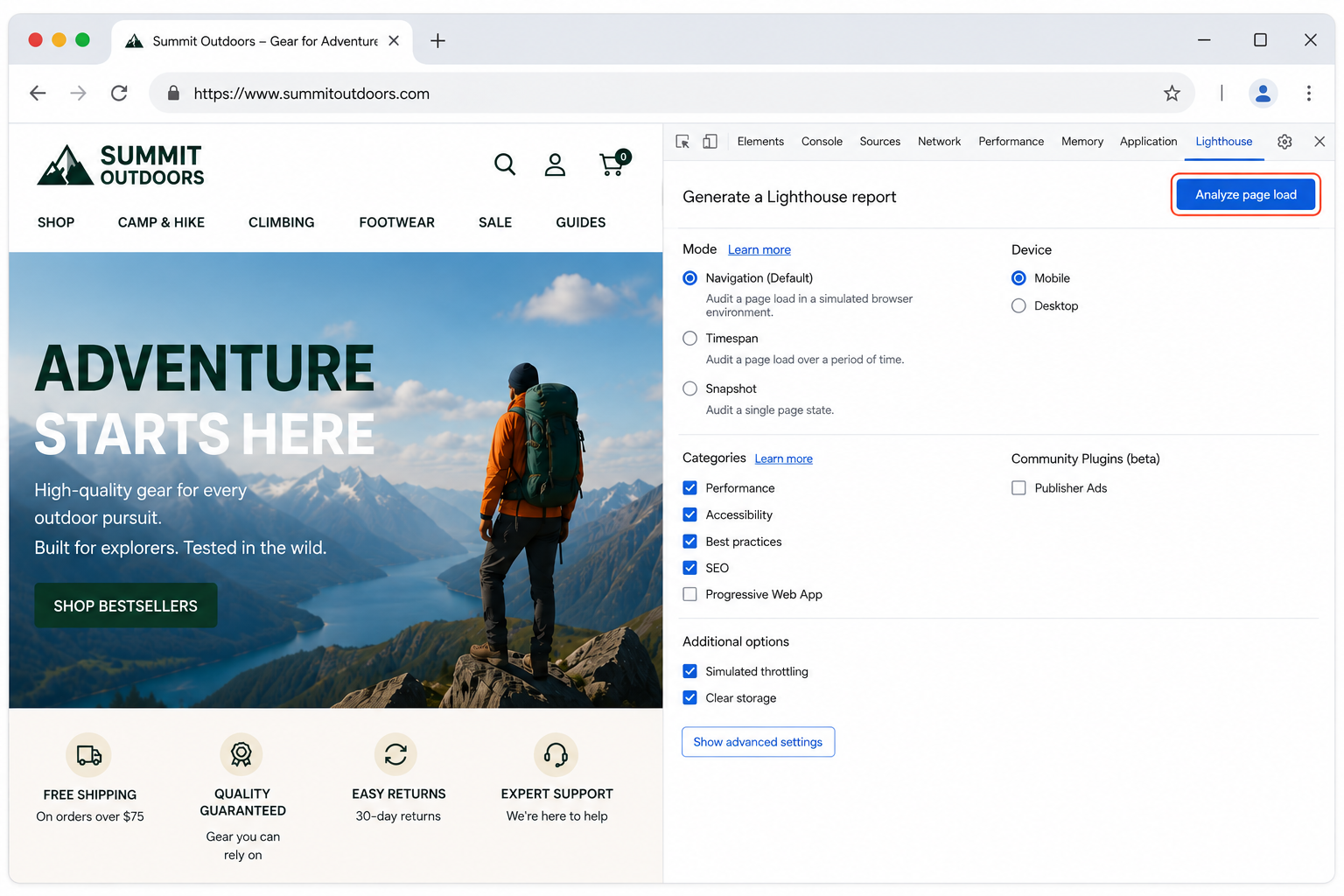
Step 5: Generate the Lighthouse report
Click Analyze page load (or Generate report, depending on your Chrome version). Lighthouse will load the page in a controlled environment and run a comprehensive series of automated audits.
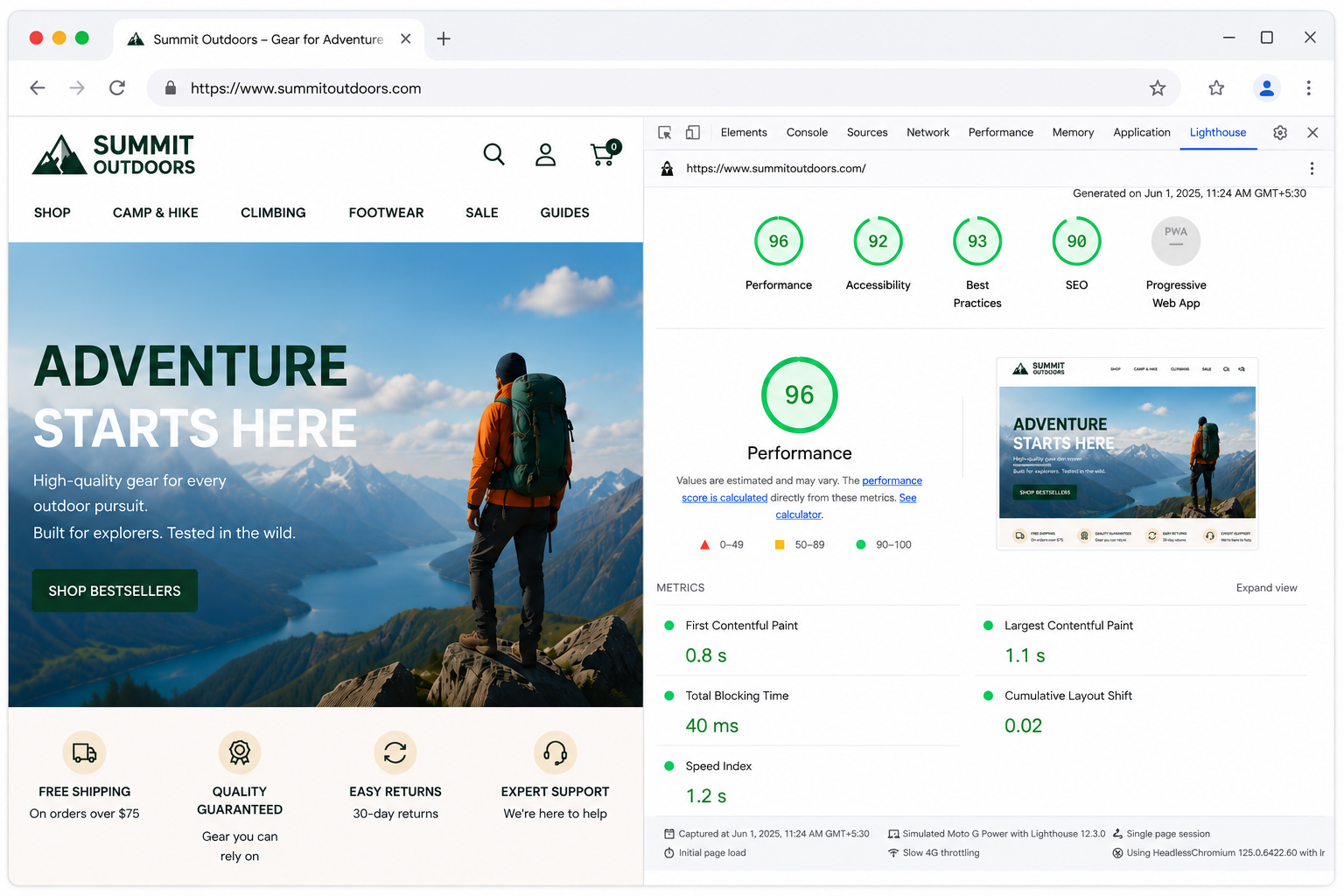
Step 6: Review the audit results
Once the audit finishes, Lighthouse generates a detailed report showing category scores, performance metrics, diagnostics, passed audits, and optimization opportunities. Focus first on high-impact recommendations that will provide the greatest improvement.
Lighthouse scores can vary slightly between tests because factors such as server response time, network conditions, third-party resources, and browser state may differ. Run the audit multiple times and use the average score when evaluating website performance or comparing changes after optimization.
Understanding Google Page Speed Lighthouse Scoring
Upon running a check with Lighthouse, a website is analyzed across various metrics, with page speed being a primary one. The score ranges from 0 to 100, with higher scores indicating better performance. Factors such as the time taken for the largest contentful paint, time to interact, and cumulative layout shift, among others, are considered.
Each category in the Lighthouse report offers a score between 0 and 100. These scores are color-coded:
- Green (90-100): This range indicates optimal performance and is the target zone.
- Orange (50-89): Represents areas requiring improvements but aren't critically flawed.
- Red (0-49): Highlights critical areas that need immediate attention and optimization.

1. Performance
This metric analyses how quickly the content of a page is visually populated and becomes interactive for users.
- First Contentful Paint (FCP): Measures the time taken for the first piece of content to render.
- Largest Contentful Paint (LCP): Gauges when the main content of the page finishes rendering.
- Time to Interactive (TTI): Reflects the time taken for the page to become fully interactive.
- Cumulative Layout Shift (CLS): Assesses unexpected shifts in page layout - a lower score indicates fewer shifts.

2. Accessibility
Accessibility ensures everyone, including those with disabilities, can easily navigate and interact with the website.
- Image Alt Attributes: Checks if images have alternate text for screen readers.
- Color Contrast: Ensures text colors contrast well with background colors for readability.
- Accessible Forms: Validates if forms can be easily navigated using a keyboard or screen reader.

3. Best Practices
This category reviews various modern web development best practices.
- HTTPS Usage: Confirms secure data transmission through SSL certificates.
- Safe Browsing: Detects any unsafe links or potential threats.
- Use of Modern Technologies: Assesses use of up-to-date JavaScript, CSS practices, etc.

4. SEO
Search Engine Optimization (SEO) ensures the website is optimized for search engine visibility.
- Title Tags and Meta Descriptions: Ensures relevant metadata is present.
- Mobile-Friendly: Checks if the website is responsive and works well on mobile devices.
- Link Structure: Reviews internal links, canonical URLs, and crawlable paths.

The Google Page Speed Lighthouse Score is more than just a number. It reflects a website's health in the competitive digital landscape, directly impacting user experience and SEO rankings. By understanding and optimizing for this score, one can pave the way for a faster, more efficient, and user-friendly website.
FAQs
Google Lighthouse is an open-source auditing tool developed by Google that evaluates the quality of webpages. It automatically analyzes a page across multiple categories, including Performance, Accessibility, Best Practices, and SEO, and provides detailed recommendations to help improve the overall user experience.
Each Lighthouse category receives a score between 0 and 100. A score of 90–100 is considered Good, 50–89 indicates that improvements are needed, and 0–49 suggests significant issues that should be addressed. Higher scores generally indicate better website quality and adherence to modern web development best practices.
Lighthouse evaluates webpages across four primary categories: Performance, which measures loading speed and responsiveness; Accessibility, which checks how usable the page is for people with disabilities; Best Practices, which reviews modern development standards and security practices; and SEO, which checks basic technical SEO implementation.
Google Lighthouse is the auditing engine that performs the website analysis. Google PageSpeed Insights uses Lighthouse to generate its laboratory performance data while also combining it with real-world user experience data from the Chrome User Experience Report (CrUX), when available. Lighthouse provides a broader audit covering Accessibility, Best Practices, and SEO in addition to Performance.
Small variations are normal. Scores can change because of differences in server response times, network conditions, browser caching, third-party resources, advertisements, analytics scripts, or background processes running during the audit. Running multiple tests and averaging the results provides a more reliable assessment.
Lighthouse scores themselves are not Google ranking factors. However, many of the issues Lighthouse identifies—such as poor page performance, missing accessibility attributes, mobile usability problems, and weak technical SEO—can indirectly influence user experience and search engine visibility.
Google recommends aiming for scores of 90 or above in each Lighthouse category. While achieving a perfect score of 100 is desirable, it is not essential. Consistently maintaining scores in the green range generally indicates that your website follows modern web development best practices.
Yes. Lighthouse allows you to audit webpages using either a simulated mobile device or a desktop environment. Since mobile devices typically have slower processors and network conditions, mobile scores are often lower than desktop scores.
Common issues include oversized images, render-blocking CSS and JavaScript, unused code, slow server response times, missing image alt text, insufficient color contrast, insecure resources, missing meta tags, incorrect viewport configuration, and other opportunities to improve performance, accessibility, and SEO.
Yes. If you open a logged-in page in Chrome and then run Lighthouse through Chrome DevTools, Lighthouse can audit the currently loaded page. However, online Lighthouse services may not be able to access pages protected by authentication.
It is good practice to run Lighthouse after major website updates, design changes, CMS upgrades, plugin installations, or server migrations. Many development teams also include Lighthouse audits as part of their regular testing and deployment process to catch performance regressions early.
This tool retrieves the Lighthouse scores for each URL you submit and reports the results across the four major audit categories—Performance, Accessibility, Best Practices, and SEO. It enables you to quickly identify pages that require optimization and monitor website quality across multiple URLs.