
GZIP Compression
Gzip compression reduces the size of your website's files before they’re sent to a visitor’s browser.
- It improves page speed by transferring fewer bytes over the network.
- Gzip compression reduces bandwidth usage and can lower costs related to hosting, content delivery network on high traffic websites.
- Gzip is enabled at the server or CDN level and verified via response headers like this - Content-Encoding: gzip.
- If Gzip compression isn’t available, websites often use Brotli which usually provides better compression on HTTPS.
What is Gzip Compression?
Gzip compression is a method websites use to make files smaller before sending them to the visitor's browser. Smaller files download faster, so pages load quickly - especially on mobile networks or slower connections.
When you share a big folder, you often compress or “zip” it to reduce its size. Gzip compression does something similar for web pages in real time. The server compresses the content, and your browser automatically uncompresses it after download the zipped file. All of this happens behind the scenes, so visitors don’t need to install anything or click anything to uncompress files at their end.
Gzip works best for text-based files such as: HTML,CSS,JavaScript and JSON/XML (data).These file types often contain lots of repeatable text patterns, which makes them easy to compress thereby reducing the file size significantly.
Your browser and the web server use HTTP headers to “agree” on compression:
- The browser says what type of compression it supports via Accept-Encoding (for example: gzip or br).
- If the server sends a compressed response, it includes Content-Encoding: gzip in the response headers.
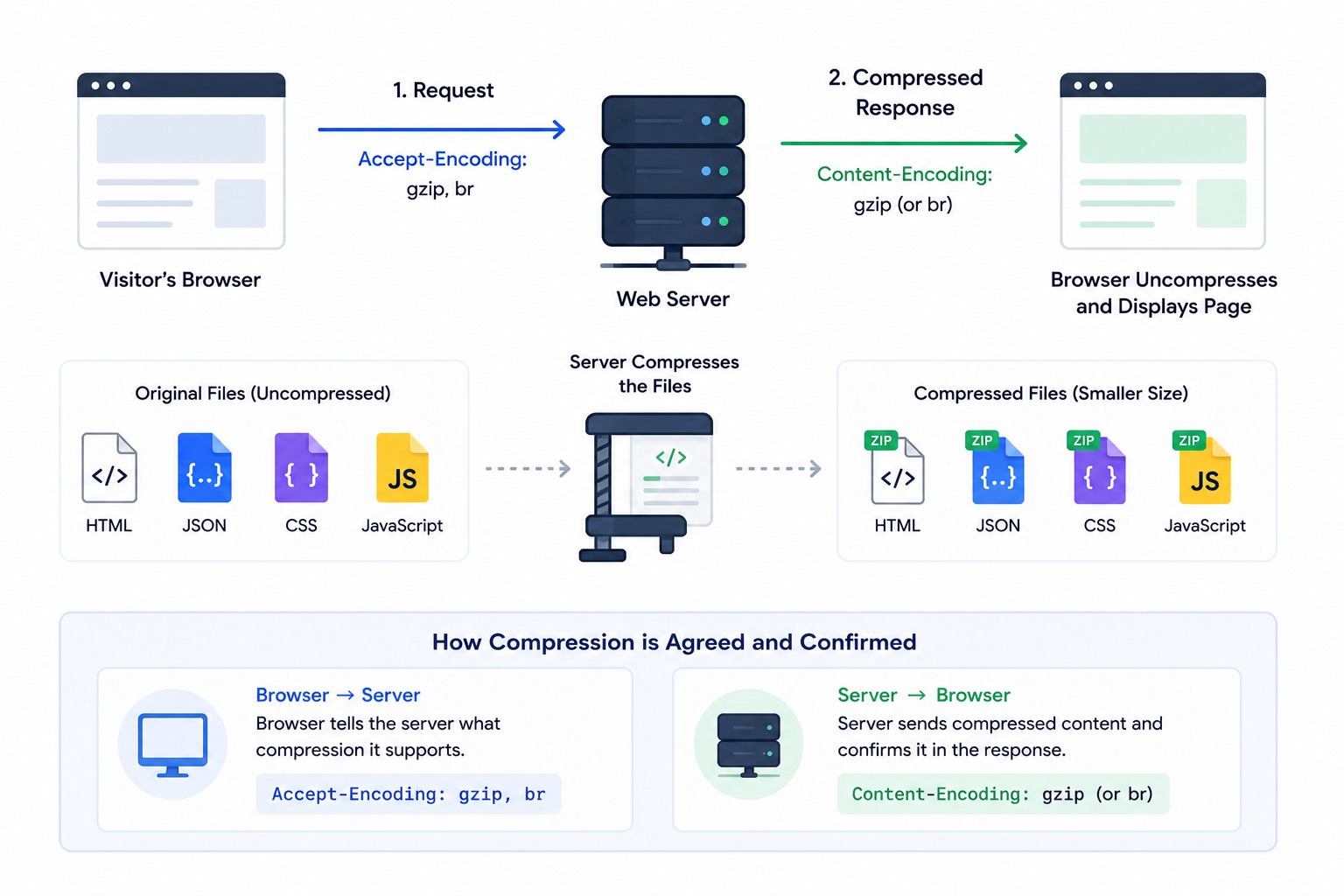
If you see Content-Encoding: gzip or Content-Encoding: br (for Brotli), it usually means compression is enabled and working.If you don’t see a Content-Encoding header for text resources, your website may be sending larger, uncompressed files which may lead to slower load times and higher bandwidth usage.
Note: Gzip is generally not useful for files that are already compressed, like images (JPG/PNG/WebP), videos (MP4), or archives (ZIP). Compressing those again often gives little benefit and can waste server CPU.
GZIP Compression vs Brotli Compression
GZIP and Brotli are compression methods used to reduce the size of text-based web resources before they are sent from a server to a browser. Both can significantly reduce transfer size and improve page loading, but Brotli generally achieves better compression for many web resources.
| Gzip Compression | Brotli Compression |
|---|---|
| Widely supported: GZIP has been supported by web servers, browsers, CDNs, and other web infrastructure for many years, making it a highly compatible compression method. | Modern compression: Brotli was developed by Google and is designed specifically with modern web content in mind. It generally achieves better compression than GZIP for many text-based resources. |
| Good compression: It can significantly reduce the size of HTML, CSS, JavaScript, JSON, XML, and other text-based files. | Smaller responses: Brotli can often produce smaller compressed files than GZIP, reducing the amount of data transferred to visitors. |
| Excellent fallback: Because of its broad compatibility, GZIP remains useful when Brotli is not supported by the requesting client or available in the server/CDN configuration. | Preferred for modern browsers: Brotli is widely supported by modern browsers and is generally the preferred choice when it is available. |
| Best for: HTML, CSS, JavaScript, JSON, XML, SVG, and other compressible text-based resources. | Best for: HTML, CSS, JavaScript, JSON, SVG, and other text-based web resources where reducing transfer size is important. |
| When to use: Use GZIP when Brotli is unavailable or when broad compatibility is the priority. | When to use: Prefer Brotli where supported, while keeping GZIP available as a fallback. |
Which compression method should you use? If your server and CDN support Brotli, it is generally the preferred option for modern websites because it can deliver smaller compressed responses. GZIP remains important because of its broad compatibility and works well as a fallback when Brotli is not available.
How GZIP Compression Works
GZIP compression works automatically between a visitor's browser and your web server. Before requesting a page, the browser tells the server which compression methods it supports. If GZIP is supported, the server compresses eligible files before sending them across the network. The browser then decompresses the response automatically and displays the original content to the visitor.
Browser Request
The browser requests a webpage and tells the server which compression methods it supports.
Accept-Encoding: gzip, br
Server Compresses
The server compresses eligible text-based resources such as HTML, CSS, JavaScript, JSON, and SVG before sending them.
Compressed Response
The smaller compressed response travels from the server to the visitor, reducing the amount of data transferred.
Content-Encoding: gzip
Browser Decompresses
The browser automatically decompresses the response and uses the original content to render the webpage.
The entire process happens in the background. Visitors do not need to install software or manually unzip anything. The main benefit is that fewer bytes need to travel across the network, which can reduce transfer time and bandwidth usage, particularly on slower or mobile connections.
How to verify a webpage has Gzip compression enabled or not:
Open your browser's developer tools, select a text-based resource in the Network panel, and check the response headers.
You will likely see the below if Gzip compression is enabled on that resource
Content-Encoding: gzip indicates GZIP compression, while
Content-Encoding: br indicates Brotli compression.
How the Gzip Compression Test Works
When you enter a URL, our tool checks whether the server or CDN is sending compressed responses for text-based resources such as HTML, CSS, and JavaScript. This is done by inspecting the HTTP response headers and validating whether compression is applied correctly or not.
Here are the main checks we perform:
- Checks browser support request: Modern browsers tell servers which compression formats they support using the Accept-Encoding request header (commonly gzip, br).
- Confirms compression is enabled: If compression is active, the server should respond with Content-Encoding: gzip (or Content-Encoding: br for Brotli).
- Verifies eligible content types: Compression should typically apply to text-based MIME types like text/html, text/css, application/javascript, application/json,image/svg+xml etc.
- Detects common misconfigurations: We look for issues like compression missing on CSS/JS, compression only working on the homepage, redirects where compression disappears, or responses that appear uncompressed.
If the tool reports that Gzip is not enabled, it usually means the server isn’t compressing responses, the CDN isn’t configured to compress, or the content type/rules aren’t set to include the files that should be compressed.
Do’s and Don’ts of Gzip Compression
Gzip compression is one of the easiest speed wins, but it should be applied thoughtfully. Use the guidelines below to compress the right files, avoid wasted CPU, and keep caching behavior correct.
Do's
- Compress text based resources: Enable compression for HTML, CSS, JavaScript, JSON/XML, and SVG files.
- Prefer Brotli over Gzip: If your server supports it, serve brotli compression and keep gzip as a fallback method.
- Confirm via response headers: Look for Content-Encoding: gzip on responses to ensure it’s truly enabled.
- Compress the biggest wins first: Compressing main HTML documents and large CSS/JS bundles usually benefit the most.
- Ensure correct MIME types: Servers usually decide what to compress based on MIME type, so use the right
Content-Type. - Use proper caching signals: Include Vary: Accept-Encoding when needed so cache store the right version per browser support.
- Monitor CPU: Compression costs higher CPU usage so use sensible compression levels according your web hosting plan.
Don’ts
- Don’t compress already compressed files: Skip images, audio, videos and archives format since the gains are minimal.
- Don’t “double compress” responses: Misconfigured stacks can compress twice and cause errors or wasted processing.
- Don’t use extreme compression levels: The smallest file size isn’t always worth high CPU usage. Balance speed and server load.
- Don’t assume compression is on for all resources: It may be enabled for HTML but missing for CSS due to rules or MIME type issues.
- Don’t break caching behavior: Missing Vary: Accept-Encoding can lead to incorrect cached versions being served.
- Don’t ignore redirects: Compression can appear “off” if the tested URL redirects to another URL that doesn’t compress.
- Don’t rely on compression alone: Gzip helps a lot, but combine it with caching, minification, and efficient asset delivery for best results.
Common Reasons Gzip is Not Working On your Website
If Gzip compression is disabled or only working on some pages of your website, it usually comes down to server/CDN configuration, incorrect content types, or conflicting rules in your delivery stack. Most issues are easy to fix once you know where to look.
- Compression isn’t enabled on the origin server: If you control Apache, Nginx, or IIS, Gzip may simply be off by default or not configured for the file types you serve. Enabling that configuration on the server level should fix the problem.
- CDN compression is disabled: Some CDNs require you to toggle compression on, and others compress only specific MIME types. You may see HTML compressed but not CSS/JS. In this case, you have to configure your CDN to compress all file types with Gzip.
- Wrong or missing MIME types: Servers often decide what to compress based on "Content-Type". If JS, CSS, or JSON are sent with an unexpected type (or as plain text), compression rules may not match.
- Files are too small to compress: Many servers won’t compress responses under a certain file size because the savings are minimal. That can make compression look “inconsistent” across resources.
- Brotli is enabled but Gzip is not (or vice versa): Modern setups may serve "Content-Encoding: br" to supported browsers.If you’re only looking for Gzip, you might miss that compression is still active but it's not Gzip but Brotli.
- Redirects lead to a different configuration: If your URL redirects (HTTP → HTTPS, non-www → www, or to a different host), the final destination might be the one that actually needs compression enabled.
- Reverse proxy / load balancer conflicts: Stacks with Nginx + Apache, Varnish, or other proxies can accidentally disable compression, strip headers, or apply different rules depending on the route.
- Already-compressed or non-eligible resources: Images, videos, and archives usually won’t show Gzip because they’re already compressed.That’s expected behavior and not much of a problem.
- Misconfigured caching headers: If a cache stores an uncompressed version and serves it back, you may not see "Content-Encoding" consistently. Proper use of "Vary: Accept-Encoding"helps prevent this issue.
- Server rules exclude certain paths or file extensions: Some setups compress only HTML and forget about assets like .css, .js, or API responses (/api/ endpoints returning JSON).
If you’re unsure where the problem is, start by testing a few different resource types (HTML page, CSS file, JS file).If only some compress, it’s usually a rule/MIME-type issue. If nothing compresses, it’s likely a server/CDN setting or misconfiguration which needs to be fixed.
Once Gzip compression is enabled correctly, you should see Content-Encoding: gzip on eligible responses and noticeably smaller transfer sizes. That translates into faster loads, especially for first-time visitors and mobile traffic.
FAQs
GZIP compression reduces the size of text-based web resources before they are transferred from a server to a browser. Smaller responses require less bandwidth and can be transferred more quickly, particularly on slower or mobile connections.
Check the HTTP response headers for the resource you are testing. If compression is enabled with GZIP, you should typically see Content-Encoding: gzip. If Brotli is being used instead, the header will usually show Content-Encoding: br.
Content-Encoding: gzip indicates that the server compressed the response using GZIP before sending it to the browser. The browser recognizes the encoding and automatically decompresses the response before using the content.
Accept-Encoding is an HTTP request header sent by a browser to tell the server which content compression methods it supports. For example, a browser may send Accept-Encoding: gzip, br, allowing the server to select an appropriate compression method.
GZIP works particularly well for text-based resources such as HTML, CSS, JavaScript, JSON, XML, and SVG. These files often contain repetitive text patterns that can be compressed significantly.
Generally, no. Formats such as JPEG, PNG, WebP, and AVIF are already compressed using image-specific compression techniques. Applying GZIP to these files usually provides little additional benefit and can consume unnecessary server resources.
No. GZIP is primarily used for compressing text-based web resources during HTTP delivery, while image compression reduces the size of image files using formats and techniques designed specifically for images.
Brotli generally provides better compression than GZIP for many text-based web resources, which can result in smaller responses. However, GZIP has extremely broad compatibility and remains useful as a fallback when Brotli is unavailable.
Yes. You can configure your server or CDN to use Brotli for browsers that support it and GZIP as a fallback for clients that do not. The browser and server negotiate the supported compression method through HTTP headers.
GZIP can improve loading performance by reducing the amount of data that needs to be transferred between the server and browser. The actual improvement depends on the size and type of resources, network conditions, server performance, and other factors affecting page speed.
GZIP compression is not a direct Google ranking factor. However, reducing the size of web resources can contribute to better loading performance and user experience, which can support broader website performance and SEO efforts.
Compression requires some CPU processing on the server. In most cases the performance benefit of transferring smaller responses outweighs this overhead, but extremely aggressive compression settings can consume additional CPU. Compression levels should therefore be configured according to your server capacity.
This is often caused by server or CDN rules that only enable compression for certain MIME types or file extensions. Check the Content-Type and Content-Encoding response headers for the CSS and JavaScript files to determine whether they are being served with the expected compression settings.
Yes. Caching layers can store and serve different versions of a response depending on whether compression is supported. The Vary: Accept-Encoding response header can help caches distinguish between compressed and uncompressed representations when necessary.
This tool checks the HTTP response from the URL you submit and examines the response headers to determine whether eligible text-based content is being served with GZIP or another supported compression method. It helps identify missing compression and common configuration issues.