
HTML Compression
HTML compression reduces the size of a webpage’s HTML by removing unnecessary whitespace and characters like extra spaces, line breaks, and comments without changing the functionality of the page or how the page looks.
- Pages with HTML Compression enabled loads faster and can improve the rendering time, especially on mobile devices and slower networks.
- HTML compression reduces bandwidth usage and helps improve performance on websites with high traffic.
- HTML compression usually means minifying HTML and removing inline CSS and JS. HTML compression is not about “zipping” files.
- It’s generally safe, but overly aggressive minification can break pages that rely on whitespace (e.g., <pre> or <textarea>).
- It works best alongside Gzip compression, caching, and proper CSS and JS minification techniques.
What is HTML Compression?
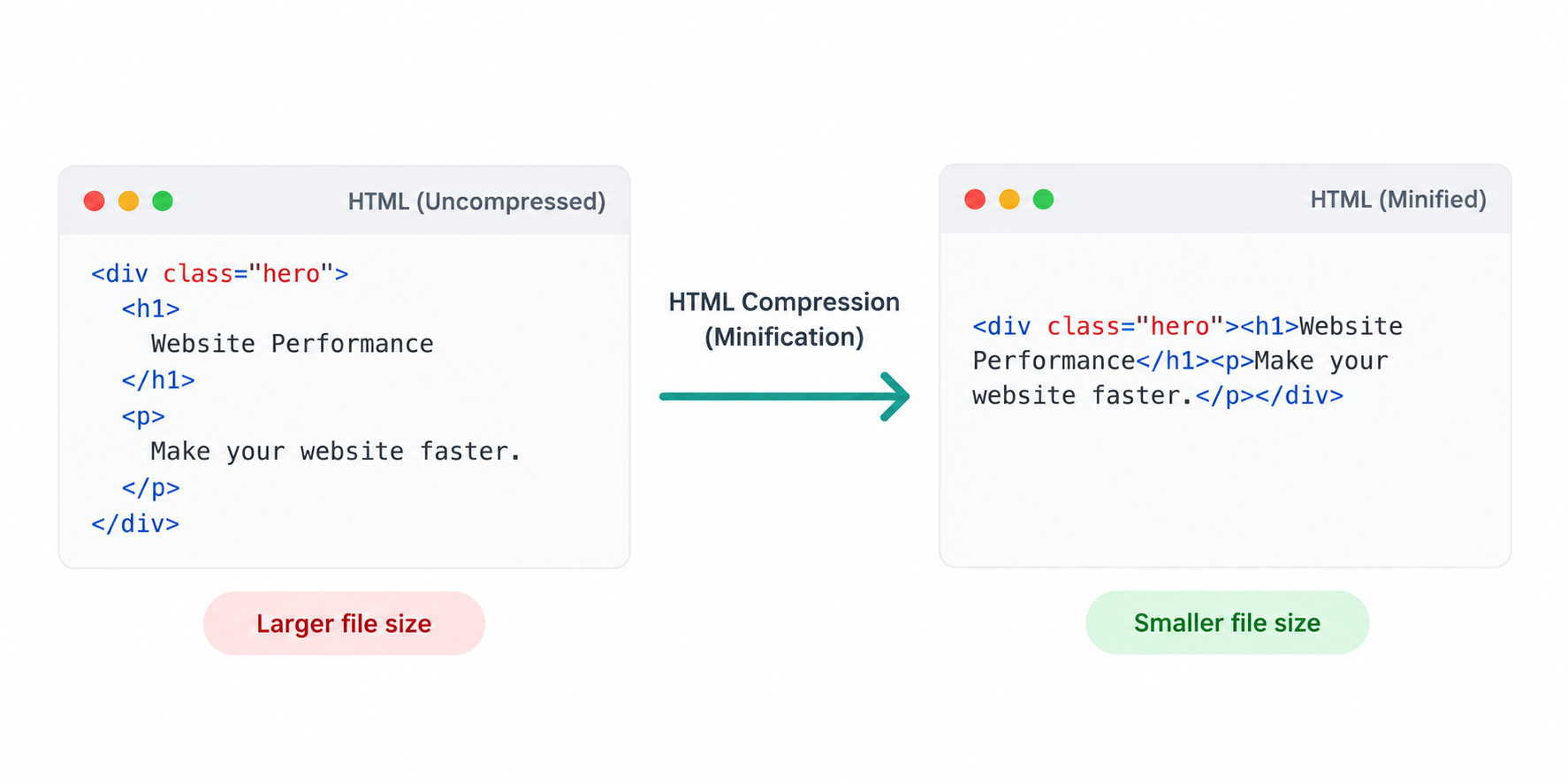
HTML compression (also known as HTML minification) is the process of making your webpage’s HTML file smallerby removing characters that are useful for humans to read, but unnecessary for browsers to render.
When developers write HTML, it usually includes indentation, line breaks, and spacing to keep the HTML readable for human eyes. Browsers don’t need whitespaces and such formatting. HTML compression removes the extra whitespace so the same page is delivered in fewer bytes. The result is faster file transfers and quicker rendering - especially for first-time visitors.
HTML compression commonly includes:
- Removing extra whitespace - spaces, tabs, and line breaks are not required by browsers.
- Removing HTML comments - This is optional, but is considered a common practice in production)
- Cleaning up unnecessary markup - Markup code generated by themes, plugins or page builders serve no purpose and is removed.
- Minifying inline CSS and JS - This has to be done properly, ensuring the functionality doesn't break.
Common Causes of Bloated HTML
HTML can become unnecessarily large as a website grows, especially when pages contain complex layouts, repeated components, or content generated by multiple systems. Common causes of bloated HTML include:
- Excessive whitespace and indentation: Large amounts of spaces, tabs, and line breaks make the source code easier to read but increase the size of the HTML file.
- HTML comments: Development notes, debugging comments, and unused comments add bytes without contributing to the rendered page.
-
Redundant markup: Unnecessary wrapper elements, deeply nested
<div>structures, and repeated containers can increase the size and complexity of the document. - Duplicated elements: Repeated navigation, promotional blocks, tracking elements, or component markup can add significant HTML when used unnecessarily.
- Page-builder output: Visual page builders and CMS plugins may generate verbose markup with multiple wrapper elements and unnecessary attributes.
- Inline styles and scripts: Large amounts of CSS or JavaScript embedded directly in the HTML can increase document size and make the page harder to maintain.
- Excessive attributes: Unnecessary classes, IDs, data attributes, and other markup can contribute to HTML bloat.
- Dynamically generated markup: Personalization, recommendation systems, analytics, and other systems can introduce additional elements into the page.
The goal of HTML compression is not to remove HTML indiscriminately. The objective is to eliminate unnecessary markup and formatting while preserving the page's structure, functionality, accessibility, and visual appearance.
What the HTML Compression Test Checks
Our tool analyzes the HTML returned by a webpage and checks whether it is compressed and minified, or whether it contains unnecessary bloat that increases page size. This helps you understand if your live HTML output is optimized for faster loading.
Here are some of the key things we look for:
- Excessive whitespace and line breaks: Uncompressed HTML is usually “looks pretty" with indentation and many new lines. Minified HTML is typically more compact in nature. We look whether your coe has indentation and whitespace.
- HTML comments: Comments including large blocks left by templates or page builders increases size and are often safe to remove. We check if your code contains HTML comments or not.
- Overall HTML document size: We evaluate the size of the HTML and highlight when it’s unusually large for the type of page being tested.
- Markup bloat patterns: We check for signs of overly nested containers, repeated elements, and unnecessary wrappers that inflate HTML.
- Inline code overhead: Large inline CSS/JS blocks can significantly increase HTML size. We flag this as a common reason HTML becomes heavy.
If your HTML is not compressed, enabling HTML minification can reduce transfer size and help pages start rendering faster. For best results, combine HTML compression with Gzip or Brotli compression.
Do’s and Don’ts for HTML Compression
HTML compression is usually a safe and high impact optimization, but it should be implemented carefully - especially on dynamic pages like checkout, login, and pages that contains forms. Follow these do’s and don’ts to reduce HTML size without breaking layouts or functionality.
Do's
- Minify HTML: Keep HTML readable in development, but serve compressed HTML in the production environment (live website).
- Remove HTML comments: Production pages don’t usually need comments and removing them reduces size of the HTML.
- Prioritize what matters: Focus on pages and templates with heavy HTML output first.
- Keep markup lean: Reduce unnecessary wrappers and deeply nested <div> structures wherever possible.
- Minimize inline CSS and JS: Large inline scripts or styles should be minimised while External CSS and files are preferred.
- Test whitespace sensitive elements: Verify pages containing <pre>, <textarea> code blocks do not break after enabling HTML minification.
Don’ts
- Don’t minify blindly without testing: Always test key flows to ensure scripts and layouts still behave correctly, after HTML minification is enabled.
- Don’t use overly aggressive minifiers: Tools that rewrite markup too aggressively can break inline scripts, templating output, or whitespace sensitive content.
- Don’t keep massive inline JSON blobs by default: Large embedded data can inflate HTML significantly. Load data efficiently whereever possible.
- Don’t rely on compression to “fix” heavy pages: Minification helps but bloated DOM and heavy scripts still slow down rendering and interaction.
- Don’t duplicate tracking scripts: Repeated analytics/pixels add weight and can cause tracking issues - consolidate tracking scripts using Google tag manager if possible.
- Don’t sacrifice maintainability in development: Keep source HTML readable for your team and compress only the output served to users.
Good vs. Bad HTML Compression Practices
| Good Practice | Bad Practice |
|---|---|
| Minify unnecessary whitespace and line breaks while preserving meaningful content. | Removing whitespace without considering elements such as <pre> or <textarea> where it can affect displayed content. |
| Remove HTML comments that are no longer needed in production. | Keeping large blocks of development comments and debugging information in production HTML. |
| Remove redundant wrapper elements and unnecessary markup where possible. | Using excessive nested <div> elements and duplicate containers without a functional purpose. |
| Keep HTML minification as part of the site's production build or deployment process. | Manually compressing HTML files and relying on one-time optimization. |
| Test the minified HTML to confirm that the page renders and functions correctly. | Deploying minified HTML without checking layouts, forms, scripts, or dynamic components. |
| Combine HTML minification with GZIP or Brotli for more efficient transfer. | Assuming HTML minification alone replaces HTTP response compression. |
FAQs
HTML compression generally refers to reducing the size of HTML through minification by removing unnecessary whitespace, comments, and redundant formatting while preserving the page’s functionality and structure.
Yes. Smaller HTML files require less data to transfer between the server and browser, which can reduce transfer time and contribute to faster page loading.
No. HTML minification reduces the size of the HTML source itself, while GZIP and Brotli compress the HTTP response during transfer. They can be used together for additional size reduction.
If correctly implemented, HTML minification should not change the appearance or functionality of a page. However, whitespace can be meaningful in certain elements, so minified HTML should always be tested.
Not directly. However, reducing unnecessary HTML can improve page efficiency and loading performance, which can contribute to a better user experience and support overall technical SEO.
An HTML Compression Test can evaluate the size and structure of an HTML document and identify opportunities to reduce unnecessary whitespace, comments, formatting, and other sources of markup bloat.
Yes. CDN and HTTP compression can improve how efficiently HTML is transferred, while HTML minification reduces the size of the source itself. Using both can provide additional efficiency.
It can in rare cases if HTML is aggressively modified around inline scripts or markup where whitespace is meaningful. Always test important pages and interactive elements after enabling minification.