
SSL Certificate
An SSL Certificate Test helps you verify whether a website’s SSL / TLS certificate is properly installed, valid, and secure for users. SSL stands for "Secure Sockets Layer" while TLS stands for "Transport Layer Security".
- SSL/TLS certificates encrypts the data exchanged between a user’s browser and your website.
- A valid SSL certificate builds user trust and prevents data interception or tampering.
- Google and other Search engines treat HTTPS as a ranking signal and security requirement.
- SSL/TLS certificates that are misconfigured, expired, or weak can trigger browser warnings and turn users away.
- Regularly testing SSL certificates on your website ensures your website remains secure, compliant, and trustworthy to both users and search engines.
What is an SSL Certificate?
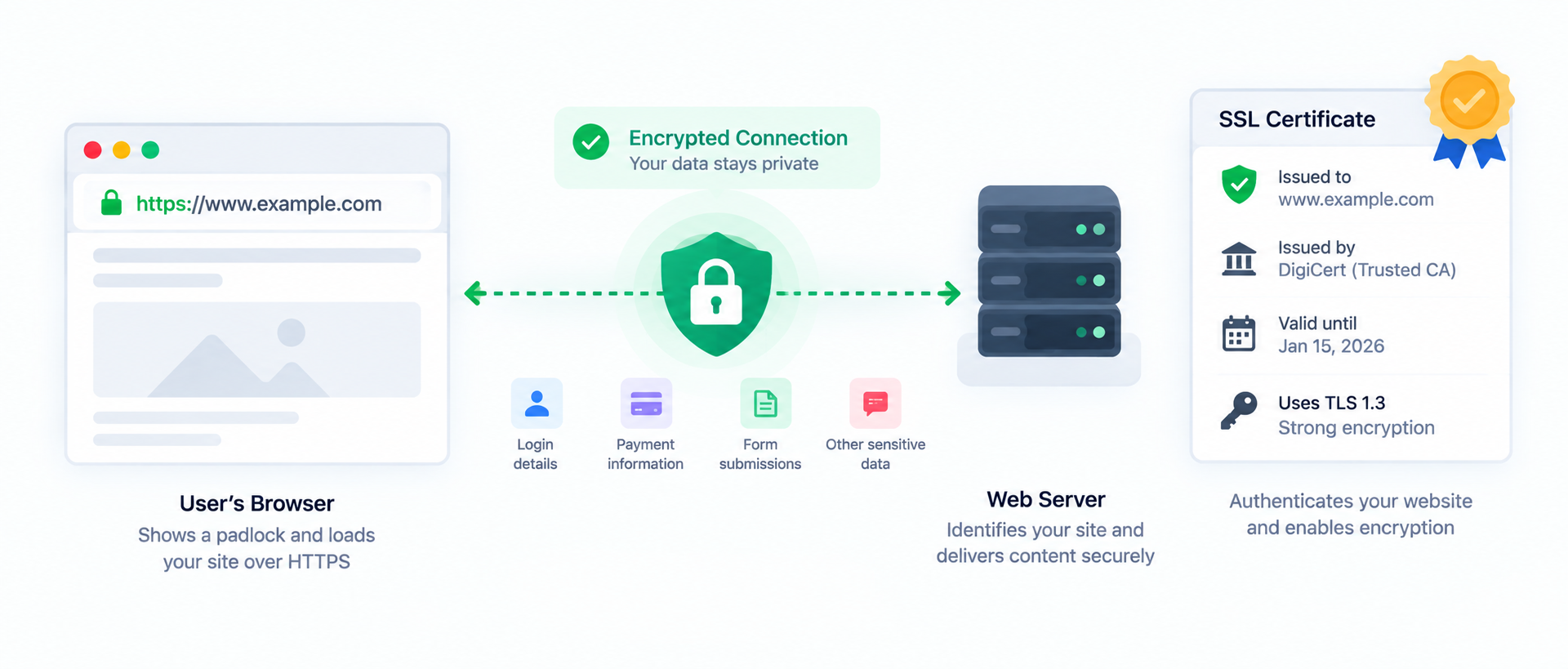
An SSL certificate, also known as a "Secure Sockets Layer" certificate is a digital certificate that authenticates a website’s identity and enables encrypted communication between a web server and a user’s browser.
When an SSL certificate is correctly installed, your website loads over "HTTPS". Users see a padlock icon in the browser address bar. This indicates that sensitive data such as login credentials, payment details, or form submissions are protected from eavesdropping and attacks.
Although SSL is the commonly used term, most modern websites actually use TLS which stands for "Transport Layer Security" which is the updated and more secure version of SSL. The term “SSL” is still widely used as an umbrella term for both SSL and TLS.
Why SSL Certificate Testing Matters
SSL certificates are not a “set it and forget it” feature. Even a small misconfiguration can break trust, block access, or expose sensitive data.
Regular SSL certificate testing helps ensure your website remains secure, accessible, and trusted by both users and search engines. Here are some reasons why having an SSL certificate for your website is really important.
- User Trust & Safety: Browser warnings like “Your connection is not private” instantly scare users away. The presence of an SSL certificate helps prevent these messages which could erode trust.
- SEO Visibility: Google considers HTTPS a ranking signal. Insecure or broken HTTPS implementations can negatively impact rankings and indexing.
- Data Protection: An SSL certificate protects user data from interception, man in the middle attacks, and unauthorized tampering.
- Compliance & Standards: Many security standards and regulations (such as PCI-DSS and GDPR best practices) require proper HTTPS encryption.
- Avoid Downtime & Revenue Loss: An expired or invalid SSL certificate can block users entirely from accessing your site, leading to lost traffic and conversions.
By regularly testing your SSL certificate, you can proactively fix issues before they affect user trust, security, or business performance.
Good vs Bad SSL Configuration Examples
Seeing real examples makes it easier to understand what a strong SSL/TLS setup looks like—and what can trigger browser warnings or security risks. A good configuration builds trust and protects users. A bad one can block access, weaken encryption, or expose visitors to attacks.
Examples of Good SSL Setup for websites
| Example | Why this is good |
|---|---|
| Valid HTTPS with modern TLS (1.2 / 1.3) | Uses strong encryption and meets modern security standards supported by current browsers. |
| Certificate issued by a trusted Certificate Authority (CA) | Recognized by major browsers, so users won’t see trust warnings. |
| Automatic certificate renewal enabled | Prevents unexpected expiration that can block users and harm credibility. |
| Complete certificate chain (including intermediates) | Ensures browsers can validate trust properly without “incomplete chain” errors. |
| All site versions redirect to HTTPS (http → https) | Forces secure browsing and avoids users landing on unsecured pages. |
Examples of Bad SSL Setup for websites
| Example | Why this is bad |
|---|---|
| Expired SSL certificate | Triggers browser security warnings and can prevent users from accessing your site. |
| Certificate name mismatch (domain does not match) | Browsers warn users because the certificate isn’t valid for the requested domain. |
| Missing intermediate certificate | Breaks the chain of trust, causing SSL validation errors in many browsers/devices. |
| Outdated protocols enabled (SSLv2/SSLv3 or weak TLS) | Older protocols are insecure and may expose users to known vulnerabilities. |
| Mixed content (HTTP resources on HTTPS pages) | Reduces security and can remove the padlock icon, lowering user trust. |
As a rule, aim for a modern TLS configuration, a trusted certificate authority, a complete certificate chain, and a fully HTTPS-only experience. These basics prevent most SSL-related trust and security issues.
Best Practices for SSL Certificates
A secure SSL/TLS setup is more than just “having HTTPS.” It’s about using modern encryption, configuring your server correctly, and ensuring users never hit trust warnings. Follow these best practices to keep your site secure and reliable.
Do’s
- Use a trusted Certificate Authority (CA): Choose certificates from reputable providers so browsers recognize your website as secure.
- Enable modern TLS versions: Use TLS 1.2 or TLS 1.3 for strong, up to date encryption.
- Set up automatic renewal: Avoid unexpected expiration of SSL certificates by enabling auto renewal or scheduling renewal reminders.
- Redirect all HTTP traffic to HTTPS: Force secure browsing with site wide 301 redirects. All HTTP requests should by default redirtected to enforce HTTPS.
- Fix mixed content issues: Ensure all scripts, images, and resources load through HTTPS and not HTTP protocall
- Install the full certificate chain: Include intermediate certificates so browsers can validate trust properly.
- Use HSTS where appropriate: HTTP Strict Transport Security helps enforce HTTPS and reduces downgrade attacks.
- Test after changes: Run an SSL test after hosting, CDN, DNS, or server configuration updates.
Don’ts
- Don’t use "self signed" certificates for public websites: Self signed certificates trigger browser warnings and breaks user trust.
- Don’t support outdated protocols: Avoid SSLv2, SSLv3, and weak or legacy TLS configurations.
- Don’t ignore certificate expiry dates: An expired certificate can block visitors and damage credibility.
- Don’t leave parts of the site on HTTP: Inconsistent HTTPS implementations can cause security warnings and tracking issues.
- Don’t use weak cipher suites: Weak encryption can expose users to known security vulnerabilities.
- Don’t forget subdomains: If your website one or multiple subdomains, ensure the subdomains are covered by a wildcard or SAN certificate.
- Don’t assume HTTPS alone makes your site “secure”: SSL protects data in transit, but you still need strong app and server security to ensure overall security of your website.
Following the above best practices helps you maintain a stable HTTPS experience, protects user data, and prevents browser warnings that can reduce traffic and conversions.
Trusted SSL / TLS Certificate Authorities
Here are some trusted SSL / TLS Certificate Authorities (CAs) that are widely recognized by browsers and operating systems -
Commercial Certificate Authorities
These are commonly used by businesses and enterprises:
- DigiCert – One of the most trusted CAs and known for high assurance and prividing enterprise grade security
- GlobalSign – Popular for enterprise, cloud, and IoT certificates
- SectigoOffers a wide range of SSL certificates at different price points (formerly known as Comodo CA)
- Entrust – Often used by large organizations and governments
- GoDaddy – Widely used due to easy integration with hosting services
Free and Open Certificate Authorities
Trusted by all major browsers:
- Let’s Encrypt – Free, automated, and very popular for HTTPS adoption.
- ZeroSSL – Free and paid options are available, widely trusted for SSL adoption.
Government / Specialized CAs
Used in regulated or regional environments:
- IdenTrust – Known for "compliance heavy" environments and government use cases
- Buypass – Common in Europe, especially for public sector use
How to know a CA is trusted
A CA, also known as a "Certificate authority" is considered trusted if its root certificate is included in major trust stores, such as:
- Google Chrome / Chromium
- Mozilla Firefox
- Apple macOS & iOS
- Microsoft Windows
FAQs on SSL Certificate
An SSL Certificate Test checks whether a website’s SSL/TLS certificate is valid, properly installed, and securely configured. It helps identify issues like expiration, weak encryption, or trust errors.
If an SSL certificate expires, browsers display security warnings or may block access entirely, which can lead to lost traffic, trust, and conversions.
No. SSL (Secure Sockets Layer) is the older technology, while TLS (Transport Layer Security) is the newer, more secure version. However, the term “SSL” is still commonly used to refer to both.
Yes. Google uses HTTPS as a ranking signal, and secure websites generally perform better in search results compared to non-HTTPS sites.
You should test your SSL certificate after installation or renewal, after server or hosting changes, and periodically (monthly or quarterly) to ensure continued security.
SSL encrypts data in transit but does not protect against server-side vulnerabilities, malware, or application-level attacks. It’s one part of a broader security strategy.
This can happen due to mixed content (some resources load over HTTP instead of HTTPS), weak encryption settings, or certificate configuration issues.
Yes. Free SSL certificates from trusted authorities like Let’s Encrypt are secure and widely trusted, provided they are properly configured and renewed.
Yes, unless you use a wildcard certificate or a multi-domain (SAN) certificate that explicitly covers those subdomains.
It means intermediate certificates are missing, preventing browsers from verifying trust properly. This can cause SSL errors even if the main certificate is valid.